Choose a video timeline for a video-editing task
A video editor arranges media over time. Sequence size and frame rate describe the timeline; clip duration and source range describe what it uses; the export format describes the delivered file. Keep those decisions separate rather than accepting whichever defaults happen to appear.
FilmCraft’s upstream materials describe video editing, trimming, color, sound and export. For an animated composition built from layers and keyframes, EffectCraft is a separate app. For a still image, prepare it in the image tool that suits the task before testing its handoff to the video timeline.
Find official FilmCraft downloads
Follow the app page to storytold/filmcraft releases, or use ArtCraft Launcher. Our tested release remains v0.6.0. Match the graphical installer to the operating system and processor when you want the editing interface. The headless CLI archive is for the reproduced commands below, while a source archive is a developer build path.
Keep the package name, release notes and checksum file. Complete the operating system’s installation prompts and begin with a test project. A successful launch does not establish that the video codec, audio codec or camera recording mode you deliver is handled correctly.
Build a first project with picture and sound
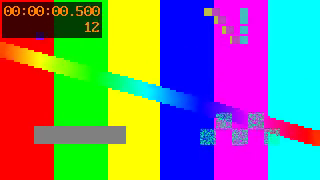
For this exercise, use our two-second H.264 moving-pattern MP4 and a separate 48 kHz PCM WAV tone. Both are original test media. Keeping picture and sound in separate files makes track placement obvious and avoids accidentally importing the same audio twice.
Create a 320 × 180 sequence at 24 fps with one video and one audio track. Place the video on V1 and sound on A1 at time zero, both for two seconds. Make a cut at one second, save, close the process and reopen the project. Then export H.264 and inspect the resulting file in an independent player or decoder.
For your own first session, use a short copied clip from your actual camera or phone instead of assuming it behaves like this synthetic source. Check frame rate, orientation, HDR metadata and sound before expanding to a longer edit. A container extension such as MP4 does not identify every codec inside it.
What the new video-and-audio check found
The cut produced two video clips and two audio clips. A fresh process read the saved timeline. The export had 48 decoded H.264 frames at 24 fps, 320 × 180, with a video duration of 2.000 seconds. Its AAC stream was stereo at 48 kHz, with a reported duration of 2.005 seconds.
ffmpeg decoded the output with error detection enabled and returned success. Independently decoded audio had nonzero RMS, establishing that sound was present. This does not measure perceptual lip-sync, exact sound level, long-session synchronization or camera-codec compatibility.
We also changed the saved project’s media references to relative filenames, copied the project and both sources to a new folder, and reopened it there. The frame at 0.5 seconds matched the original project render. That checks this portable project example, not every relinking or interchange scenario.
| Stage | Observed result | Scope |
|---|---|---|
| Import and cut | Two clips on V1 and two on A1 after the cut | Original synthetic video and WAV only |
| Video export | H.264, 320 × 180, 24 fps, 48 frames, 2.000 seconds | CPU export on one macOS release |
| Audio export | AAC stereo, 48 kHz, 2.005 seconds, nonzero decoded signal | Presence and stream properties; no lip-sync study |
| Project portability | Fresh-folder frame matched after using relative media paths | This saved project and its two included sources |
Repeat the tested import, cut and export
Put source.mp4 and tone.wav in a fresh folder. Importing them into a new project returned item IDs 1 and 2 in our test; use the actual returned IDs if your project already contains media. The supplied JSON-lines file creates the sequence and places both clips with the parameters above.
FilmCraft uses 254016000000 ticks per second; the two-second clip duration is 508032000000. Use a separate data folder for this exercise. Keep the saved project and media together, and retain original files rather than overwriting them with an export.
filmcraft-cli --data-dir ./data --save-as first.fcproj import source.mp4 tone.wav
filmcraft-cli --data-dir ./data --project first.fcproj --save run edit.jsonl
filmcraft-cli --data-dir ./data --project first.fcproj --save exec timeline.razor seconds=1
filmcraft-cli --data-dir ./data --project first.fcproj inspect sequence
filmcraft-cli --data-dir ./data --project first.fcproj export first-export.mp4 --format h264 --gpu-rendering off
ffprobe -v error -count_frames -show_streams first-export.mp4
ffmpeg -v error -xerror -i first-export.mp4 -f null -Keep Premiere projects and plug-ins as separate checks
The upstream status section says native .prproj projects cannot be opened and plug-in hosting is absent. It documents interchange paths such as XML, AAF and OTIO, but an available interchange option is not evidence that every effect, title, transition or external asset survives.
For a migration trial, export a copied short sequence from the source editor, keep the media accessible and inspect the import in the receiving version. Check clip order, trims, audio routing, titles and rendered delivery. We did not run a receiving-Premiere test, interchange test, plug-in migration or GUI editing journey.
Common first-video problems to isolate
If the file imports but shows a black picture, inspect the actual video codec, dimensions and pixel format, and try a short known-good source. A codec name in a product list does not establish every camera’s variant. Keep the failing original and report the smallest permitted reproduction.
If the output has no sound, check that an audio clip exists on A1, the track is enabled and export was not given --no-audio. Our earlier review intentionally exported a silent still-image sequence; that result should not be used as evidence for an audio workflow.
If a moved project loses media, check its paths and keep the sources with the project. Our portable download is intended to be opened alongside source.mp4 and tone.wav. An editable project file is not automatically a self-contained media package.
Sources & evidence
- Official FilmCraft
- Official tested v0.6.0 release
- Current status and interchange
- Our new first-project evidence
- Separate earlier review
Checked October 12, 2026. Source pages, discussions and releases can change. GetPhotoCraft is independent of ArtCraft.