Choose LightCraft for a photographic workflow
Start here when the task is organizing photographs, selecting keepers, adjusting a photo and exporting it. The official project describes local catalogs and non-destructive development. For a layered poster, detailed raster painting or PSD handoff, PhotoCraft is a different tool; importing a photo into a library does not create an editable Photoshop document.
RAW is also a family of camera formats, not one universal file type. The same manufacturer may use different compression and sensor layouts across models. Identify your camera model and recording mode before relying on a format name in a product list.
Download the correct app and keep the source file separate
The official product page offers ArtCraft Launcher and standalone downloads. Our tested release was v0.6.0. Choose a desktop app package for the graphical library, or the CLI archive for the commands on this page. Source archives are for development, and the downloadable web build is a separate hosting path.
Check your operating system and processor against the release assets, then compare the chosen file with SHA256SUMS.txt. Create a small test folder and a separate library before importing your working photo collection. Our tested CLI archive and app version are recorded in the public evidence file.
A first RAW job with an inspectable result
Copy one camera file into the test folder. Record its checksum, camera model and compression mode. Import it into a fresh library, make one modest exposure adjustment and export to a new name. Close the process, reopen the same library and export again; that last step checks persistence rather than just a slider changing on screen.
We used the raw.pixls.us Pentax K-x 12-bit DNG sample. It is 14,359,791 bytes and its catalog row links the CC0 public-domain dedication. The original RAW stays at the source link below; our site publishes the resulting images and check record. This is a real camera sample, unlike the synthetic color cards used in some other guides.
For your own first test, start with a correctly exposed photo containing both highlights and shadow detail. Save a reference export from the tool you already use. A recognizable scene is more useful for spotting odd colors or missing detail than simply judging whether a command finished.
What our RAW and library check found
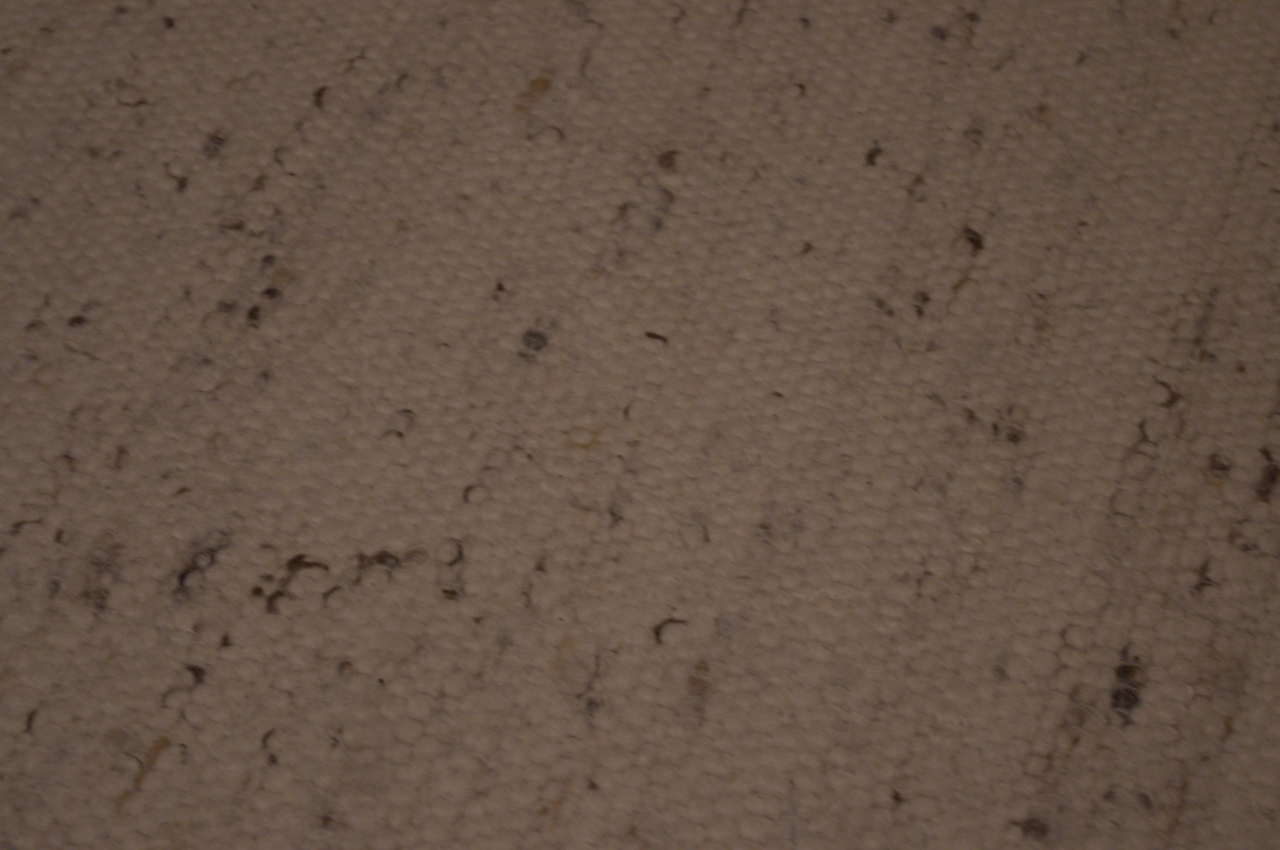
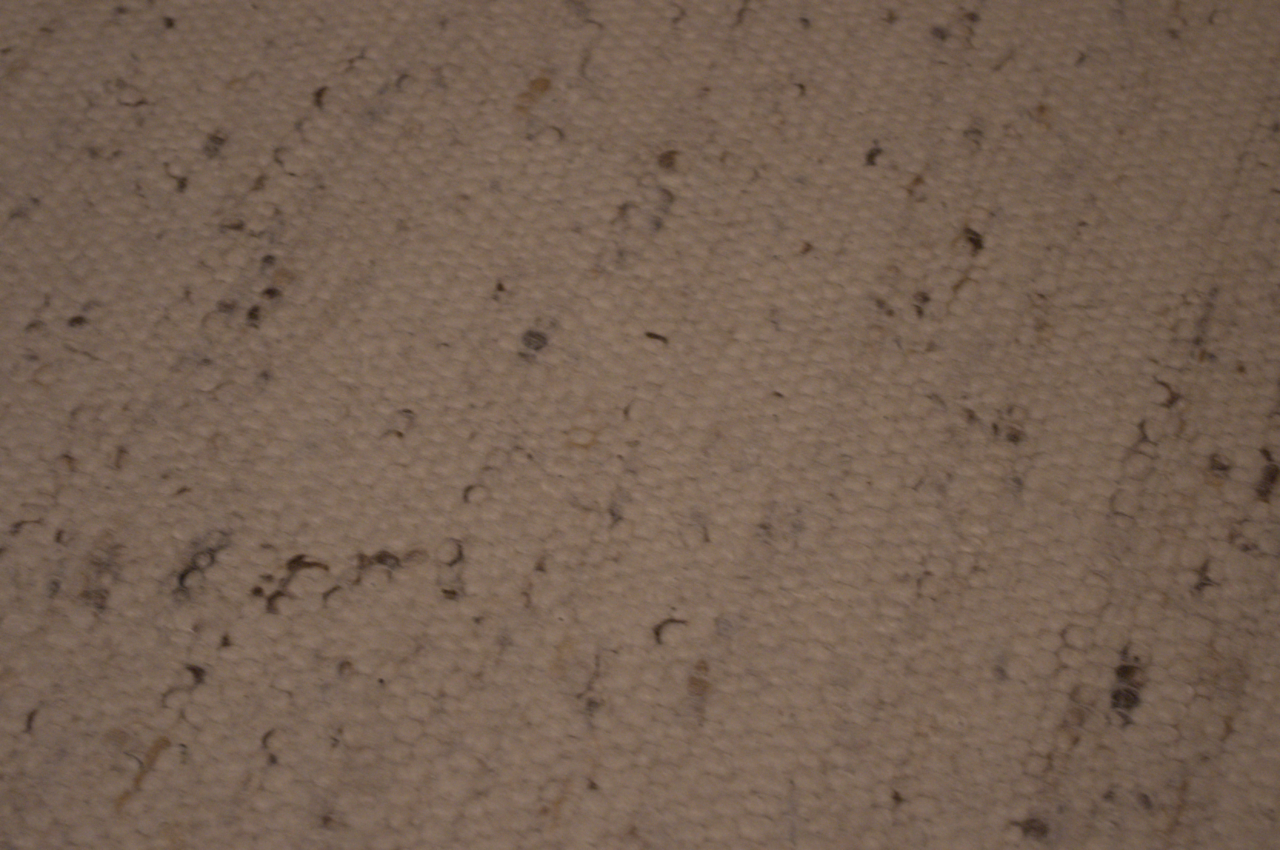
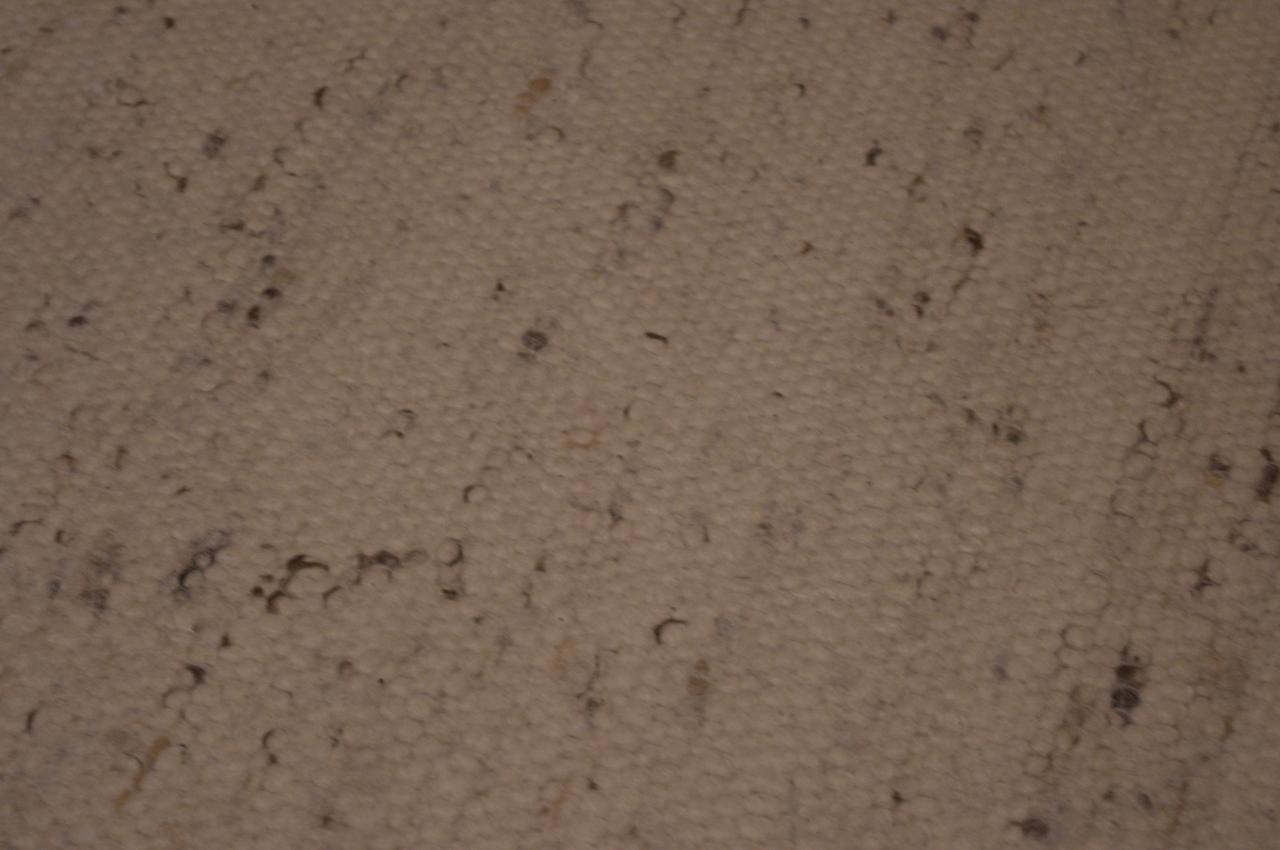
The baseline PNG and +0.5 exposure PNG were both 1280 × 850. The edit changed the image pixels; mean RGB values increased from approximately 101.65, 83.62, 70.57 to 118.75, 98.05, 83.07. Those numbers describe this image, not a calibration target or proof of color accuracy.
We then imported the DNG into a new local library, saved the exposure adjustment and reopened it in a fresh CLI process. Its PNG matched the separately rendered +0.5 output exactly in our RGB comparison. The input file’s checksum still matched the source after all operations.
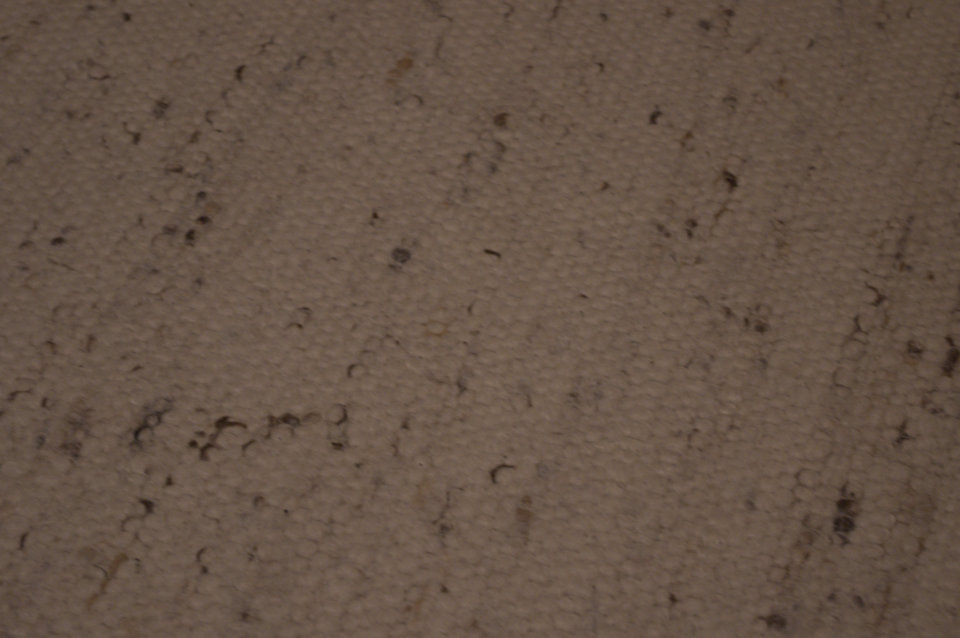
This tests file processing and persistence on one release. It does not verify that every camera variation decodes sensor data, that colors match Lightroom, or that a large catalog remains responsive. The lightweight photograph below is an actual LightCraft export from the same sample.
Reproduce the file and persistence checks
Put the exact sample in a fresh folder as sample.dng. Use the matching CLI. The first two commands render direct outputs; the next pair uses a separate persistent library. Metadata is excluded from these delivered images. Keep that test library distinct from any working library.
lightcraft-cli render sample.dng -o baseline.png --size 1280 --opt metadata=none
lightcraft-cli render sample.dng -o exposure.png --set light.exposure=0.5 --size 1280 --opt metadata=none
lightcraft-cli run --library ./test-library --import sample.dng library.selectAll develop.set control=light.exposure value=0.5
lightcraft-cli run --library ./test-library library.selectAll app.export path=reopened.png format=png longEdge=1280 metadata=none
Check your exact camera and compression mode
The upstream RAW-support notes distinguish native decoding, preview fallbacks and unsupported variations. A thumbnail can come from an embedded JPEG, so its appearance alone is insufficient evidence that the entire RAW development path works. Read the row for your model and mode, then export your own copied file.
Inspect highlight recovery, white balance, fine detail and unusual color casts in a representative photo. Recheck after changing the camera’s compression mode or installing an app update. Our DNG case cannot be extended to Canon CR3, compressed Olympus ORF, Nikon HE NEF or every other camera variant.
Plan the export and catalog handoff separately
Choose dimensions and a color space for the receiving system. Test an exported JPEG or PNG in that system, checking orientation, cropping, sharpness and the metadata you intend to disclose. A small web export and a high-depth print handoff require different checks.
Keep the original photo, the library and any sidecars together in your backup plan. A successful image export is not proof that ratings, albums, collection membership or develop history from a Lightroom catalog will migrate intact. We did not run a Lightroom catalog import or receiving-editor test.
Common first-session questions
If the preview opens but the exported file looks wrong, record the camera model, compression setting, app version and export options. Check whether the upstream notes identify a preview fallback or calibration limitation before treating it as a general problem with all RAW files.
If an edit seems lost, confirm that the second session opened the same library and selected the same photo. A direct render command and a saved library are separate paths. Our persistence recipe deliberately opens the library twice to expose that difference.
LightCraft’s local photo workflow is distinct from ArtCraft’s generative studio. Account and model-credit requirements for the studio should not be inferred for this photo library. Follow the official LightCraft source when checking this app’s behavior.
Sources & evidence
- Official LightCraft
- Official tested v0.6.0 release
- Current camera support notes
- Exact CC0 camera sample
- Our independent workflow record
Checked October 12, 2026. Source pages, discussions and releases can change. GetPhotoCraft is independent of ArtCraft.